
Why Nobody Is Visiting Your Website
You’ve just launched your website and are wondering:
“Why nobody is visiting your website?”
“Why am I getting zero traffic?”
You’re not alone.
I recently built my own website and expected at least some visitors. But the reality?
0 traffic. 0 impressions. Nothing.
That’s when I realized something important:
Just building a website is NOT enough.
Google doesn’t automatically know your site exists.
The Real Problem
Your website is invisible to search engines unless you:
- Tell Google your site exists
- Help it crawl your pages
- Allow it to index your content
Without this, your site is like:
A shop in the middle of a desert
Disclaimer: I intentionally left out deep diving into the configuration part so that you can learn about them yourselves. Trust me, it’s FUN.
How I Fixed It (Step-by-Step)
Here’s exactly what I did to make my site visible.
1. Set Up Google Search Console
First, I registered my site in Google Search Console.
This helps Google:
- Discover your site
- Track indexing
- Show performance data
I verified my site using the meta tag method in WordPress.
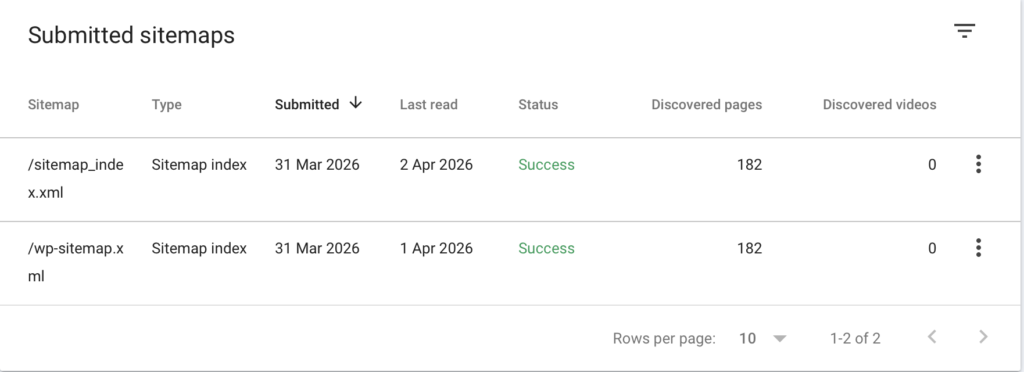
2. Submitted Sitemap
Next, I submitted my sitemap:
https://yourdomain.com/wp-sitemap.xmlThis tells Google:
“Here are all my pages — go crawl them”
3. Enabled IndexNow (Faster Indexing)
I installed the IndexNow plugin in WordPress.
This automatically:
- Notifies search engines when content changes
- Speeds up indexing
No manual API setup needed — plugin handled everything.
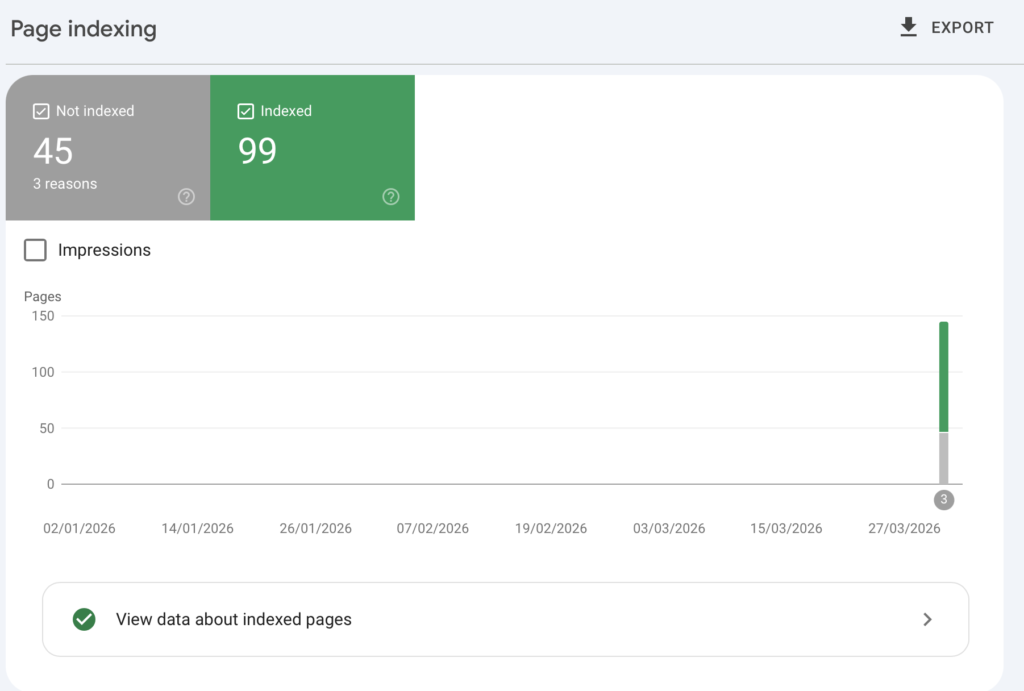
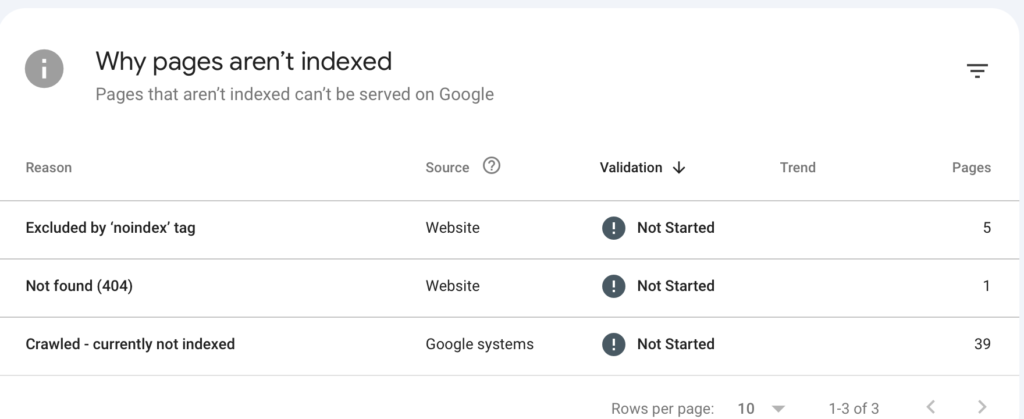
If there is issue in indexing the pages, you also get to know about them.
4. Connected Google Analytics
I connected my site to Google Analytics using Rank Math.
This allows me to:
- Track visitors
- See real-time users
- Analyze traffic sources
5. Requested Indexing Manually
For my main blog post, I used:
Google Search Console → URL Inspection → Request Indexing
This speeds up the process for new content.
Issues I Faced (And What I Learned)
Crawled but not indexed
Google crawled my pages but didn’t index them.
Reason:
- New website
- Low authority
- Limited content
Tag pages not indexed
I saw many URLs like:
/tag/java/
/tag/aws/
These were intentionally set to noindex (which is correct)
404 errors
Some URLs like:
/wp-content/uploads/*These are normal and harmless — no action needed.
What Happened After Fixing It
After setting everything up:
- Google started crawling my site
- Pages appeared in Search Console
- Impressions slowly began
No instant traffic — but clear progress
How to Check If Your Website Is Indexed
Once you have done all the required steps and configuration, you can quickly check if your website is visible on Google so that you can be assured that the steps you took actually worked.
Method 1: Google Search
Search:
site:yourdomain.comIf pages appear → your site is indexed.
Method 2: Google Search Console
Go to:
Performance → check impressions
- 0 impressions → not visible yet
- Increasing impressions → Google is showing your site
Visit Google Search Console to know more.
Method 3: URL Inspection
Paste your page URL and check:
- Indexed → good
- Not indexed → request indexing
Key Lessons
Here’s what I learned:
1. Building a website ≠ Getting traffic
You must make it discoverable.
2. Setup is just the beginning
Content is what drives growth.
3. Don’t panic about indexing issues
They’re normal for new sites.
4. Focus on quality content
Google indexes value — not just pages.
What You Should Do Next
If you’re starting a website:
- Set up Google Search Console
- Submit your sitemap
- Use IndexNow (if on WordPress)
- Connect Google Analytics
- Start publishing content consistently
Final Thoughts
This entire setup took me just a few hours — but it completely changed how my site behaves.
Understanding why nobody is visiting your website is the first step towards fixing it and building real traffic.
If you’re stuck at:
“Why is my website not getting traffic?”
Congratulations. Now you know why and you also know how to solve it.
Good day to you 🫡.
I’ve also shared my detailed Karat interview experience here.
Leave a Reply